Your Agents' Memory, Now in Your Obsidian Vault
The Memanto plugin for Obsidian turns what your coding agents have learned into notes you can read, link, query and question, right next to the rest of your thinking. Here is what it does and how to set it up in about five minutes.

Your coding agents learn things all day. That the team picked Postgres over Mongo, and why. That you never want default exports. That the flaky test is flaky because of time zones, not the database. Memanto keeps those lessons so the next session doesn't start from zero. Until now, though, the only way to look at them was to ask from a terminal.
If you live in Obsidian, that always felt a little wrong. Your plans, meeting notes and half-finished ideas are all in one vault, and the knowledge your agents collected was sitting somewhere else. The Memanto plugin closes that gap. It is now in the Obsidian community plugin directory, and it does two simple things: it brings your agents' memories into your vault as ordinary notes, and it gives you a sidebar where you can search them or just ask a question.
What you get
Your memories, as real notes
Run one command and each memory becomes a Markdown note in a Memanto folder. Every note records its type (a decision, a preference, a fact, a mistake to avoid), how confident Memanto is in it, and where it came from. They are regular notes in every way that matters: you can open them, link to them from a project page, watch them show up in graph view, and read them on your phone once your vault syncs.
Because those details live in frontmatter, Dataview can query them. Here is every decision your agents recorded, with its confidence and source:
dataviewTABLE x_memanto.confidence AS Confidence, x_memanto.provenance AS Source
FROM "Memanto"
WHERE type = "decision"
SORT file.name
And if you edit a synced note by hand, the plugin notices. Later syncs leave your version alone and tell you which files they skipped, so a correction you typed yourself is never quietly overwritten.
A sidebar that knows what your agents know
Open the sidebar from the ribbon and pick an agent from the dropdown at the top. It sits beside whatever note you have open, so you never leave your writing to look something up. If you are not sure where to start, the suggestions in the middle will get you going.
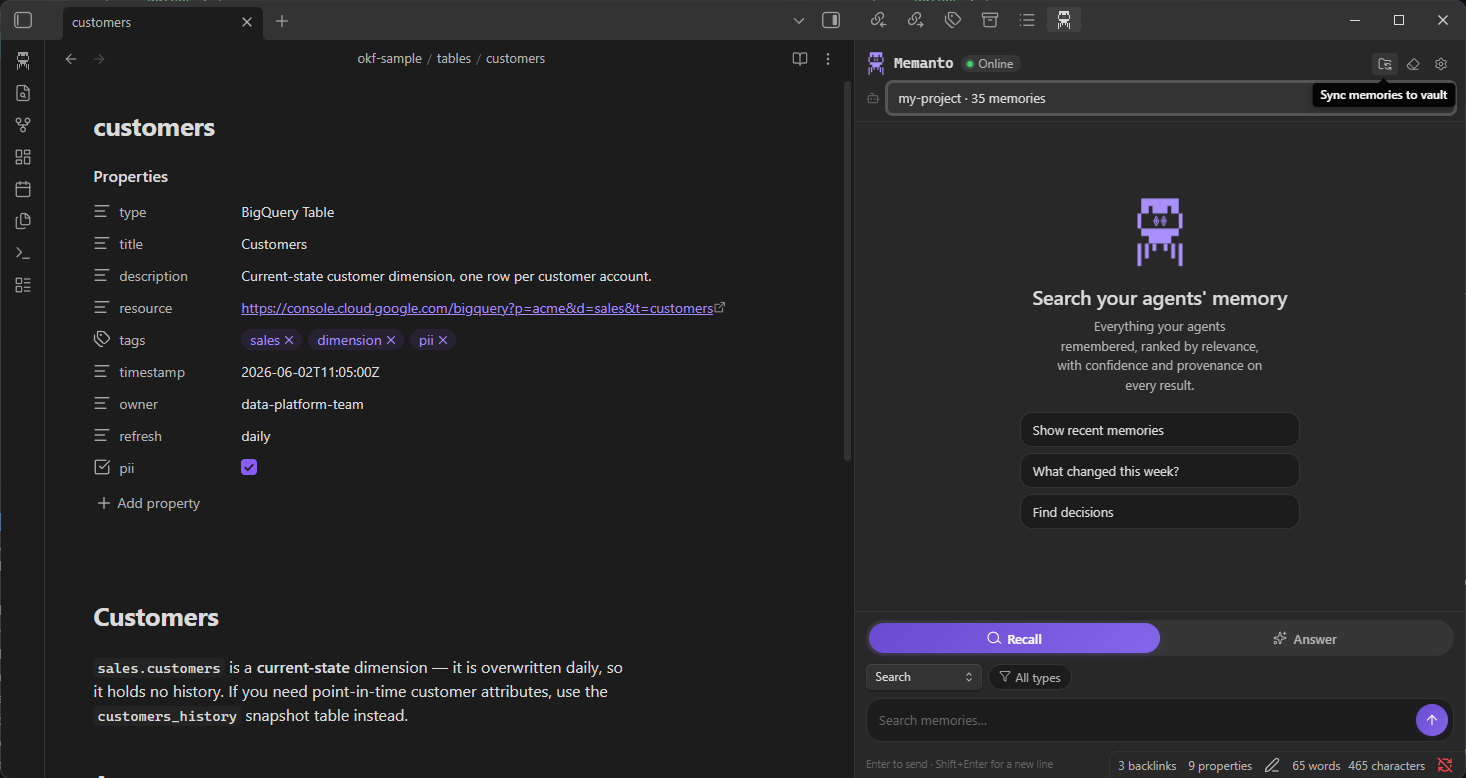
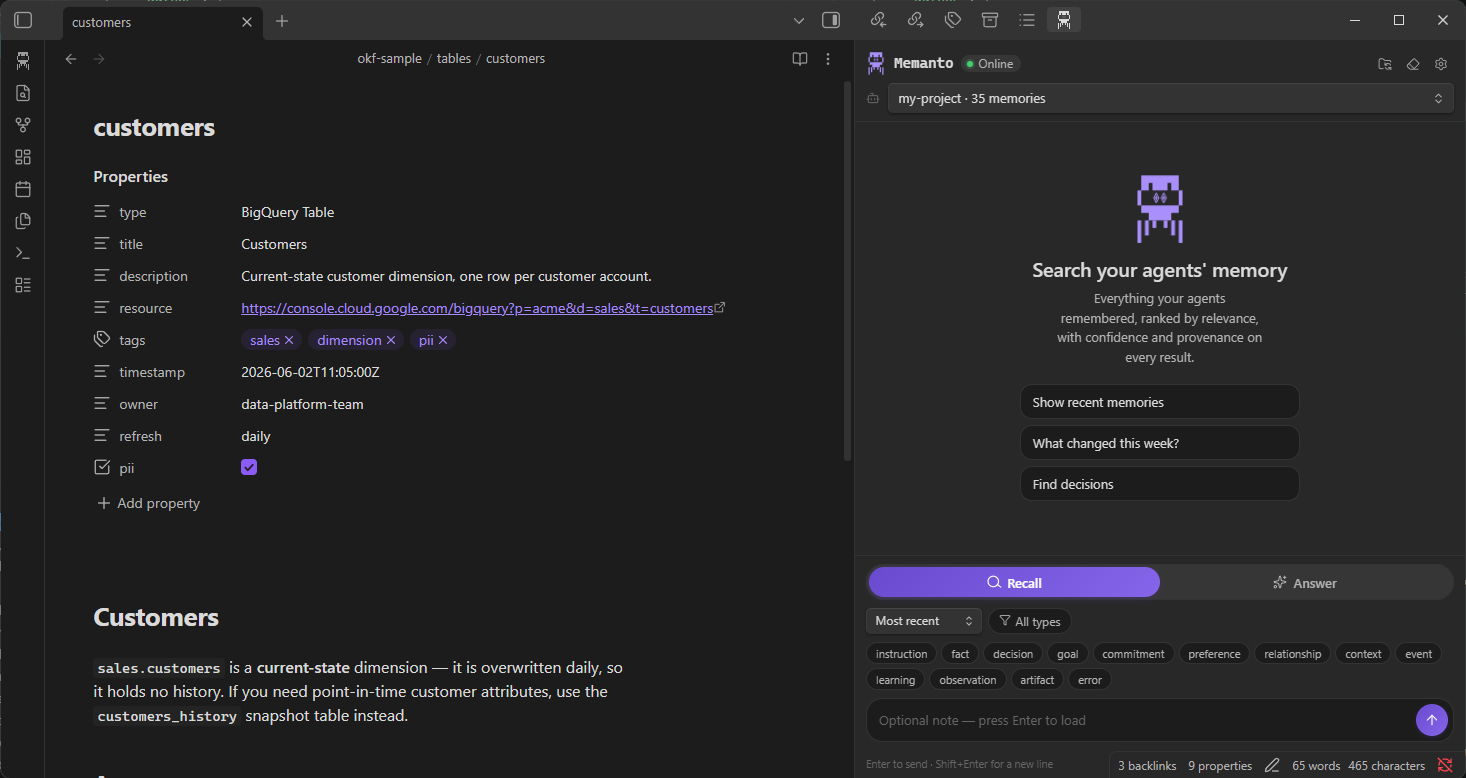
Then choose how you want to ask. Recall finds the memories that match what you typed and shows each one with its type, confidence, source and date. Switch it to Most recent, As of date or Changed since to see what your agents knew last Tuesday, or what's new since you went on holiday. The type chips underneath narrow things down to just decisions, just preferences, just errors, or any mix you like.
Answer writes a direct reply from the stored memories. Ask “what have we decided for architecture?” and you get the decisions themselves, not a page of search hits. It is also honest about mess: in the example below, two memories disagree about which database the project uses, and instead of quietly picking one, the answer points out the conflict so you can settle it.
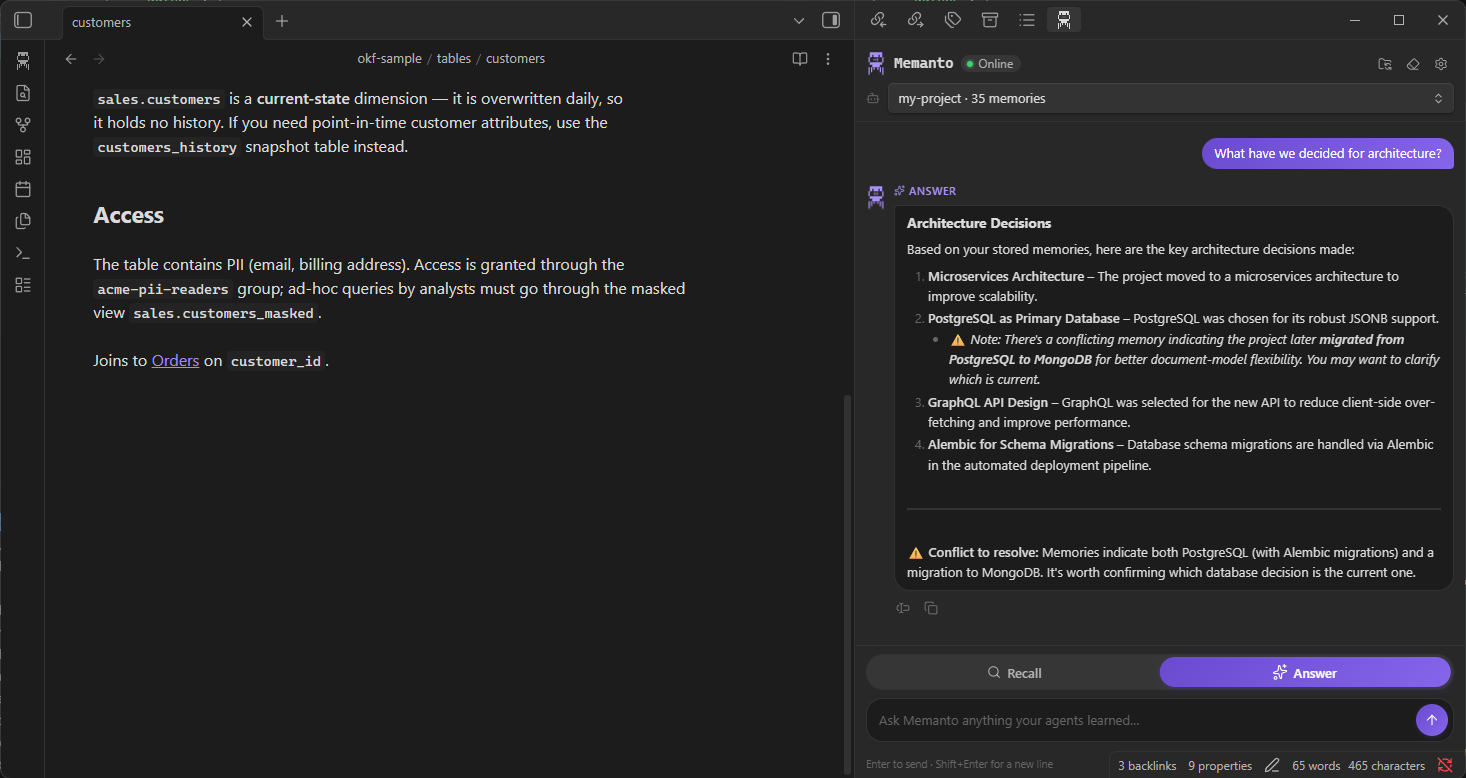
Any result can be copied, or dropped straight into the note you're writing. By default the plugin adds a short citation underneath with the memory's type, source and date, so six months from now you'll still know where that sentence came from.
“Your agents write memory for other agents. This plugin makes it readable for you.
Where it earns its place
- Writing a design doc. Ask Answer mode what was decided about the thing you are documenting, insert the reply, and the citation comes along with it.
- Coming back after time away. Set Recall to Changed since your last day at the desk and read what your agents picked up while you were gone.
- Onboarding a teammate. Point them at the
Memantofolder. It is the project’s decisions and gotchas in plain prose, already linked into the rest of your docs. - Checking your agents’ homework. Sort that Dataview table by confidence and read the lowest ones first. Those are the memories worth a second look, and seeing them in one table turns it into a two-minute job.
Set it up in three steps
You need Obsidian 1.7.2 or newer on desktop, and Python 3.11 or newer for Memanto itself.
1. Install Memanto
bashpip install memanto     # or: uv tool install memanto / pipx install memanto
memanto                 # choose where memories live and enter your key
The second command asks where your memories should live. Cloud needs a free key from console.moorcheh.ai, which comes with 100,000 operations and no card. On-prem runs locally in Docker and needs no key at all. If you already use Memanto with Claude Code, Cursor or Codex, skip this step: the plugin picks up your existing key and active agent on its own.
2. Install the plugin
In Obsidian, open Settings → Community plugins → Browse, search for Memanto, then click Install and Enable. Or click Add to Obsidian on the plugin listing.
3. Open the sidebar and sync
Click the Memanto icon in the ribbon. The plugin starts its own Memanto server in the background and stops it when you close Obsidian, so there is nothing to run by hand. It also plays nicely with your coding agents: it reuses the agent's current session instead of starting a new one, so opening Obsidian won't sign Claude Code or the CLI out.
Then click the sync button at the top of the sidebar, or run Memanto: Sync memories to vault from the command palette. Your memories land in the Memanto folder, ready to browse.
If something is missing, the plugin won't guess or install anything behind your back. It checks your machine and shows the exact commands you need, each with a copy button. You can bring that list back any time with Memanto: Setup steps.
Two settings are worth a glance once you are up and running. Sync on startup refreshes your notes every time Obsidian opens; it is off by default because it runs an export. Note layout chooses between one note per memory, one note per type, or letting Memanto decide based on how many memories you have.
What stays private
- The plugin only talks to the Memanto server on your own machine, at
127.0.0.1. - It never reads or sends your notes. Only what you type into the chat goes to Memanto.
- Your API key stays in
~/.memanto/.envand is never written into the vault, because vaults sync to other devices and git remotes. - With the on-prem backend, nothing leaves your machine. With the cloud backend, memories are stored with Moorcheh. Run
memanto config showto check which one you are on.
Try it
Memory is only as useful as your ability to see it, question it and put it to work. Obsidian is where a lot of us already do that for everything else, so it is where your agents' memory belongs too. The plugin is free and open source under the MIT licence. Install it from the community directory, and if something doesn't work the way you expect, open an issue on GitHub.